How to Send a Payment Request to Unit Occupants
Print
Created by: Main Master Account
Modified on: Thu, 22 Jan, 2026 at 7:37 AM
Follow these steps to invite a renter, owner, or guest to pay their charges through Zinc.
1. Open the Property Profile
Sign in to the Support Portal.
Select Properties and choose the property you’re working with.
2. Go to the Residents Tab
Click Residents at the top of the property profile.
You’ll see a list of current occupants and an Invite User button.
3. Start a New Invitation
Select Invite.
A form appears for the resident’s details.
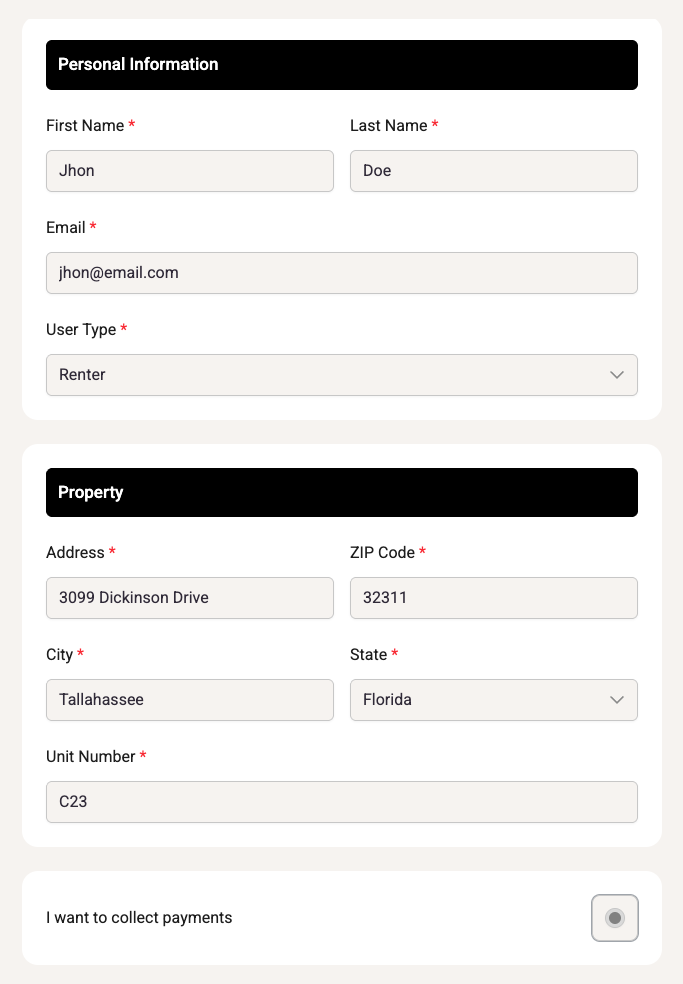
4. Review the Payment Request Details
The system shows all contracts tied to the selected User Type (e.g., rent, HOA dues, guest fees).
Confirm that the correct contracts and amounts appear.
If something is missing, cancel and adjust the property’s contract templates before continuing.
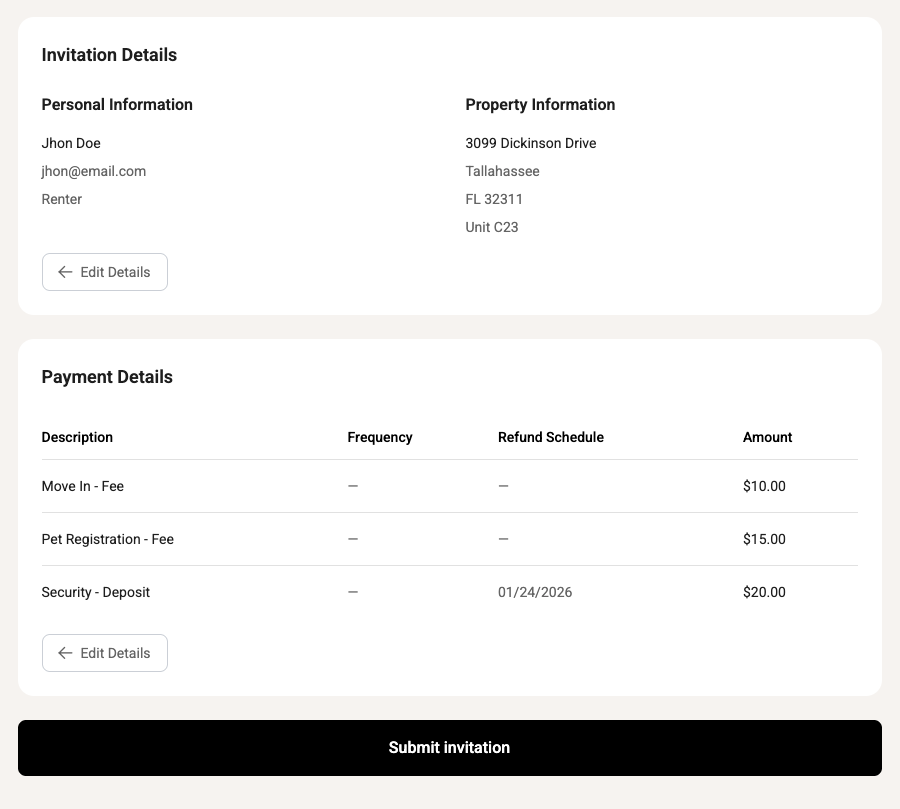
6. Send the Invitation
Select Yes, Send Invitation.
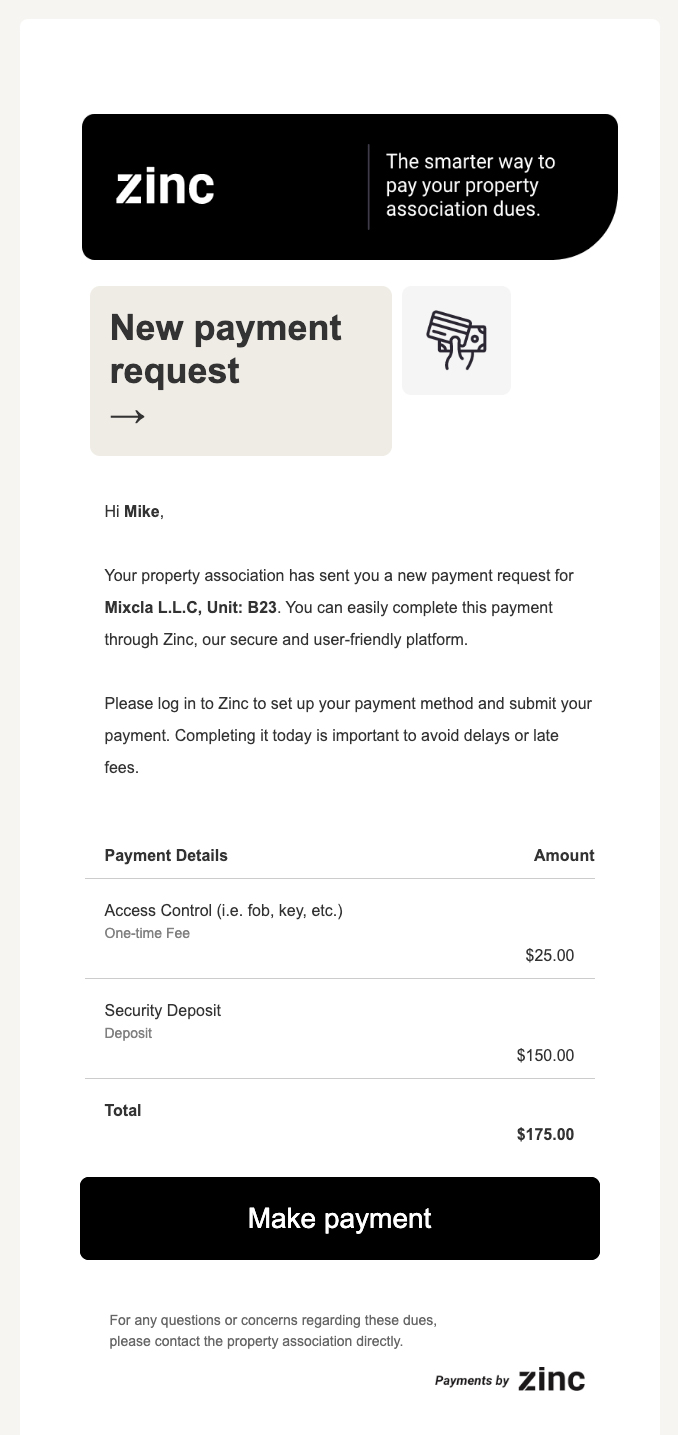
The occupant automatically receives an email containing:
A secure login link
An invoice listing the selected contracts and their due dates.
7. Follow-Up & Reminders
In the Residents tab:
Find the resident’s name in the list.
Choose Send Invitation Reminder to resend the invoice or nudge them before the due date.
That’s it! The resident can now open the email, review their charges, and pay directly through Zinc.
Need help?
Chat: Inside the Zinc dashboard, in the bottom-right corner (Need Help?)
Phone: 954.271.3294
Main is the author of this solution article.
Did you find it helpful?
Yes
No
Send feedback Sorry we couldn't be helpful. Help us improve this article with your feedback.
