
Before you start using Zinc, you need to verify your property.
Board Member / Legal Representative
As a Board Member or Legal Representative, you are the authorized individual responsible for approving the opening of a new Zinc account for your association.
The process begins when you receive an invitation from the Property Administrator.
Zinc Invitation
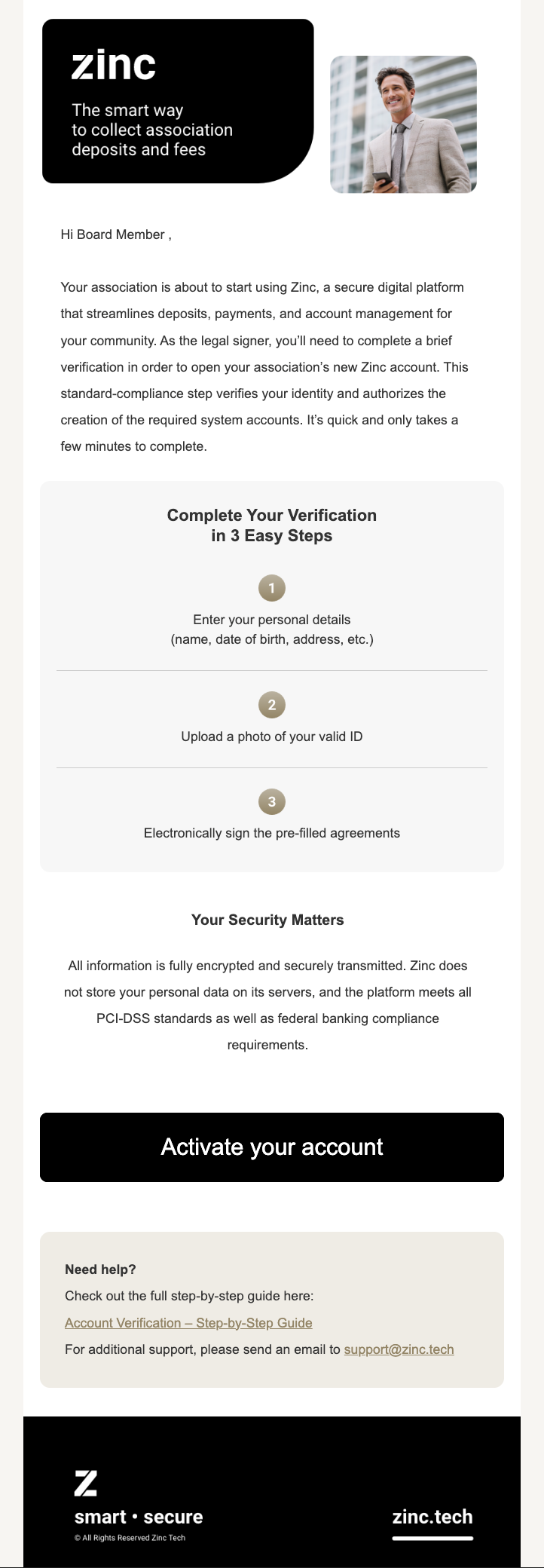
Upon receiving the invitation, the Board Member / Legal Representative must create a new Zinc account by setting up a password. To enhance security, a phone number verification is required to enable Two-Factor Authentication (2FA) before logging into the Zinc account.
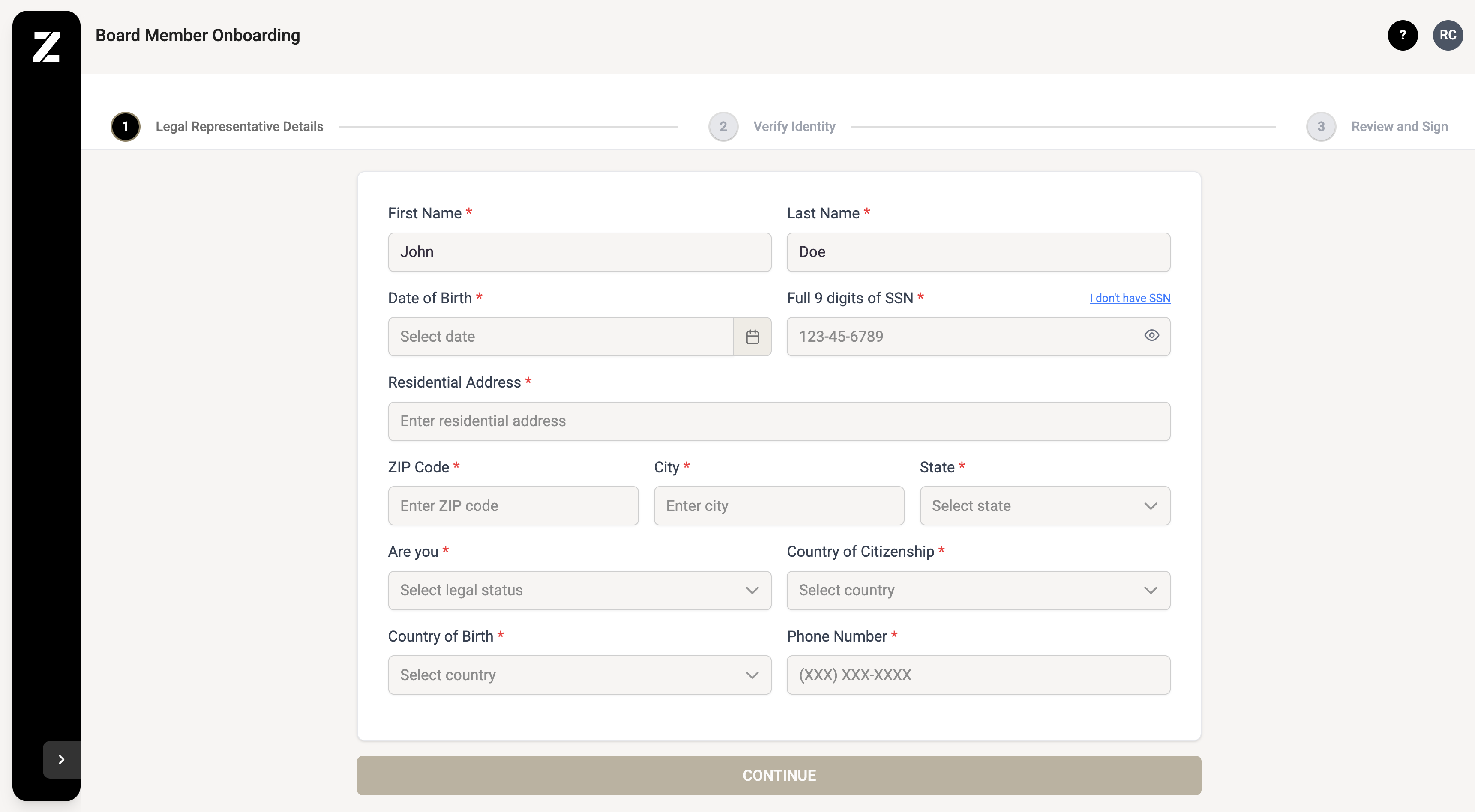
1. Personal Details
Fill each field exactly as it appears on your legal documents:
First name & Last name
Date of birth (MM/DD/YYYY)
9-digit SSN
Mailing address, City, State, ZIP
“Are you?” → choose US Citizen / US Legal Resident / Non-Resident Alien
Country of birth, Country of citizenship
Why is the Social Security number required?
Our banking partners must comply with federal Know Your Customer (KYC) regulations before opening the two bank accounts that will hold your association’s funds. An SSN is the quickest, most reliable way to meet that legal requirement—every U.S. bank asks for it in the same situation.
Your SSN is encrypted end-to-end, sent directly to the bank, and never stored on Zinc’s servers. Zinc is fully PCI-DSS compliant and employs industry-standard security controls to protect your personal information.
Signer Personal Details
3 · Upload Identification
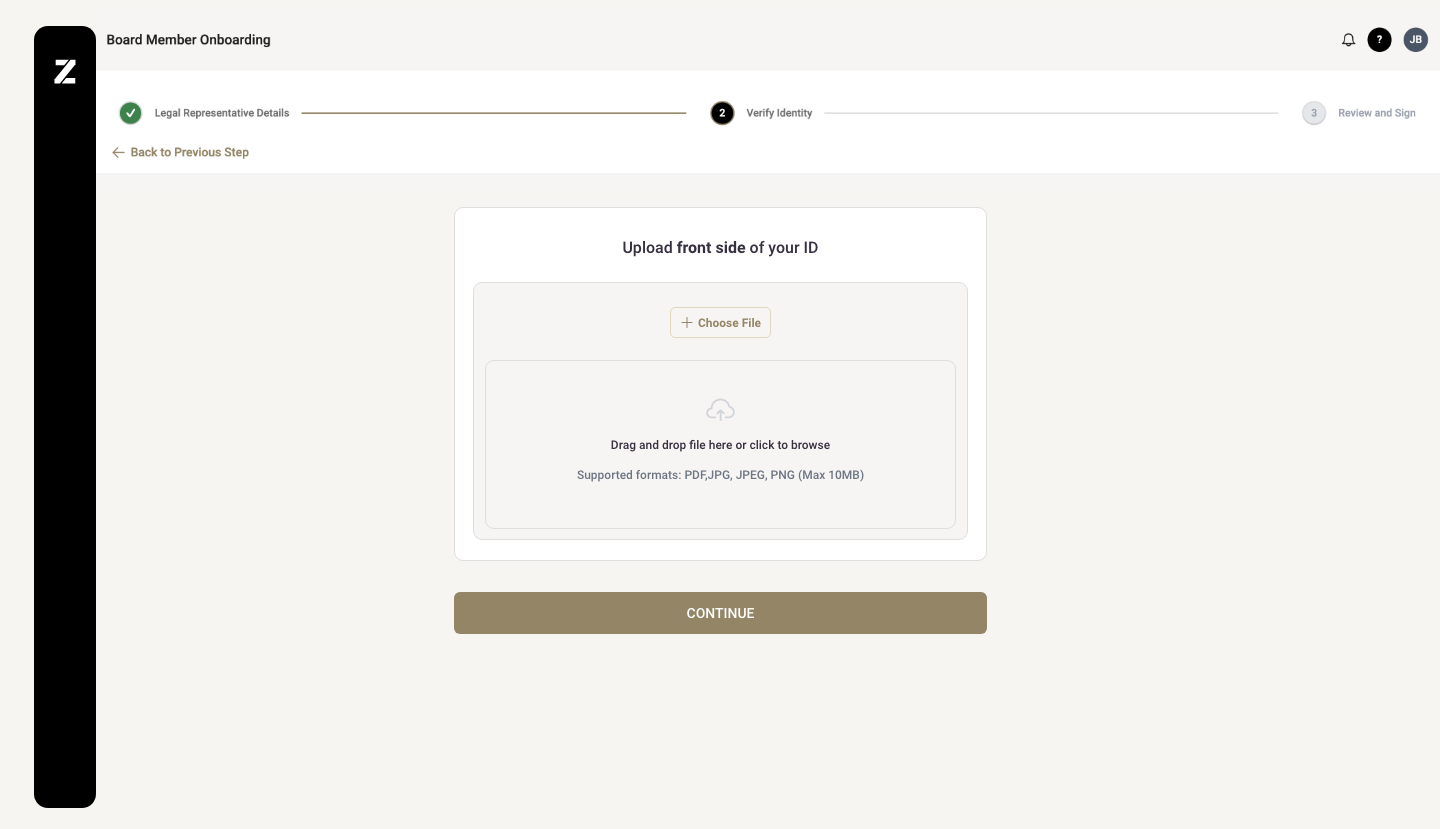
Choose ID Type → State ID, Driver License, Passport (+ proof of address), or International Passport (+ foreign ID).
Drag-and-drop or browse to the file(s) to upload the front and back sides of your ID or the main side of your Passport.
Wait for the green Verified check that confirms the document is readable.
⚠️ If the image is blurry, expired, or the name does not match, you’ll be prompted to re-upload.
Upload Identification Document
4 · Review & Sign Association Documents
Read the E-Sign Act Disclosure.
Click Agree & Continue.
Next, you will review and electronically sign the remaining agreements authorizing the opening of your Association’s new Zinc account.
Document | Action |
|---|---|
Zinc ↔ Association Service Agreement | Review ➜ Sign |
3rd-Party Authorization & Agreement to Conduct Business Electronically | Click Review ➜ Sign |
| Beneficial Ownership Certification (BOC) | Review ➜ Sign |
IRS W-9 | Confirm pre-filled data ➜ Sign |
After you submit all required information and sign the agreements, our banking partners will complete their review and notify you once your property is fully verified.
6. Verification Status
Once the Signer submits the onboarding package, the verification process may take up to 5 business days. Below are the possible verification statuses:
Reviewing: The onboarding package has been submitted, and the compliance team is reviewing the provided information.
Rejected: The information provided was insufficient for verification. Additional documents or details may be required.
Active: Your property has been successfully verified. You can now invite the Property Manager.
Need help?
Email: support@zinc.tech
Chat: Inside the Zinc dashboard, in the bottom-right corner (Need Help?)