How to setup payment requests/Smart Contracts
Print
Created by: Main Master Account
Modified on: Thu, 22 Jan, 2026 at 6:46 AM
ZINC CONTRACTS
You set the conditions, Zinc will take care of the rest
Zinc will create a contract every time you set a fee or deposit
All the conditions of your contracts will be executed seamlessly by Zinc
Every transaction is backed by blockchain technology to guarantee transparency
Let Zinc smart contracts handle all your deposit refunds automatically
Get access to detailed transaction reports with Zinc authenticity verifications
1. Look for your property
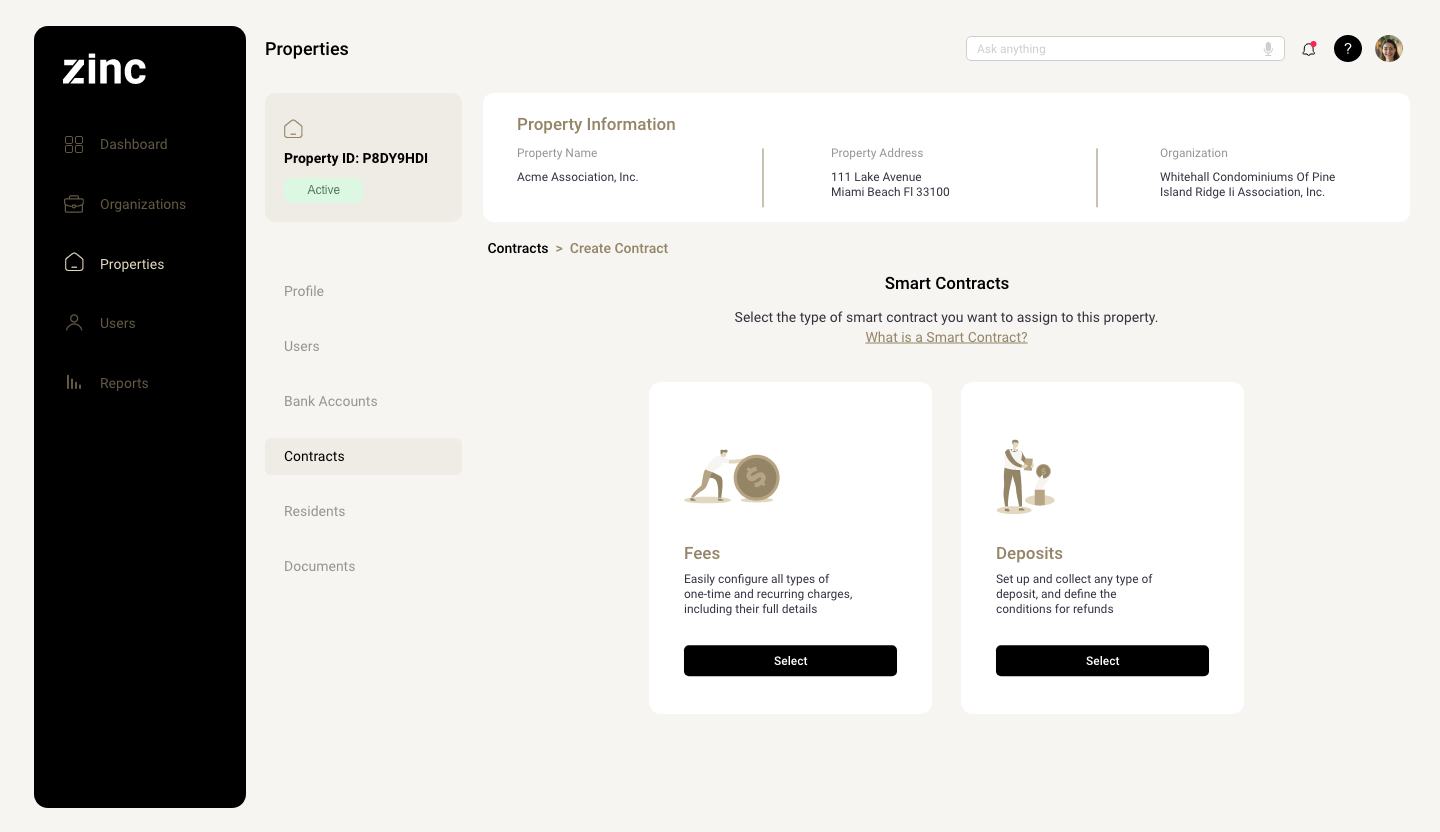
First, go to properties and choose the property you want to begin with. The property profile and look for the Contracts Button. Click on this button to access the Contract Creation Panel.
2. Set up a Smart Contract
Access the property profile and click on the Smart Contracts button. This button will open the Smart Contract Creation Panel.
3. Add a new contract
If this is the first time creating a contract, you will need to click on the Add Contracts button.
4. Choose the type of contract
For this screen, you can now choose the type of contract you want to set up for your property. There are two types of contracts.
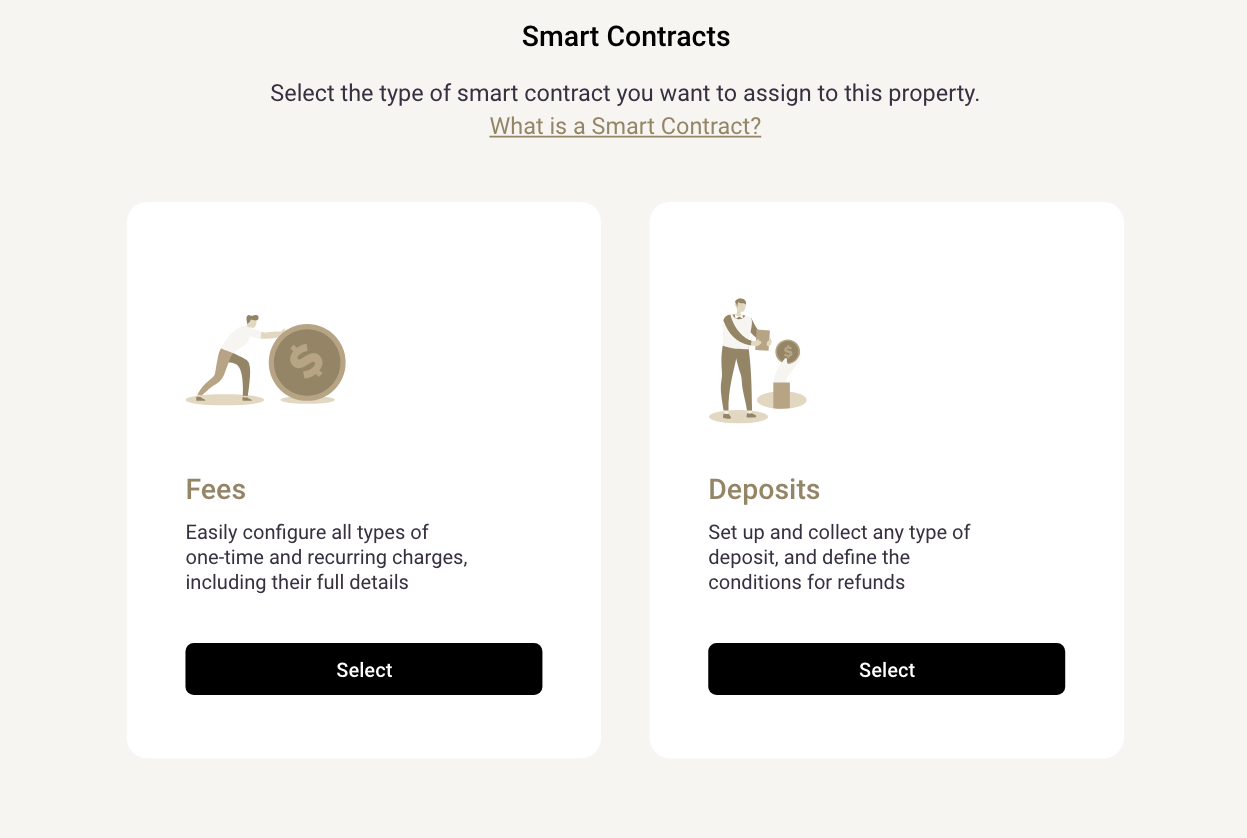
Standard Fee:
It is a one-time transaction; the association can charge any type of fee. Here, you can also create recurring fees, such as parking or landscaping, if necessary.
Deposits:
A deposit is an amount of money held by the association as a guarantee to cover any damages that could happen during the contract period. Once the refund date is set up, the smart contract will automatically transfer the money back to the original destination bank account provided by the tenant.
5. Configure Your Smart Contract
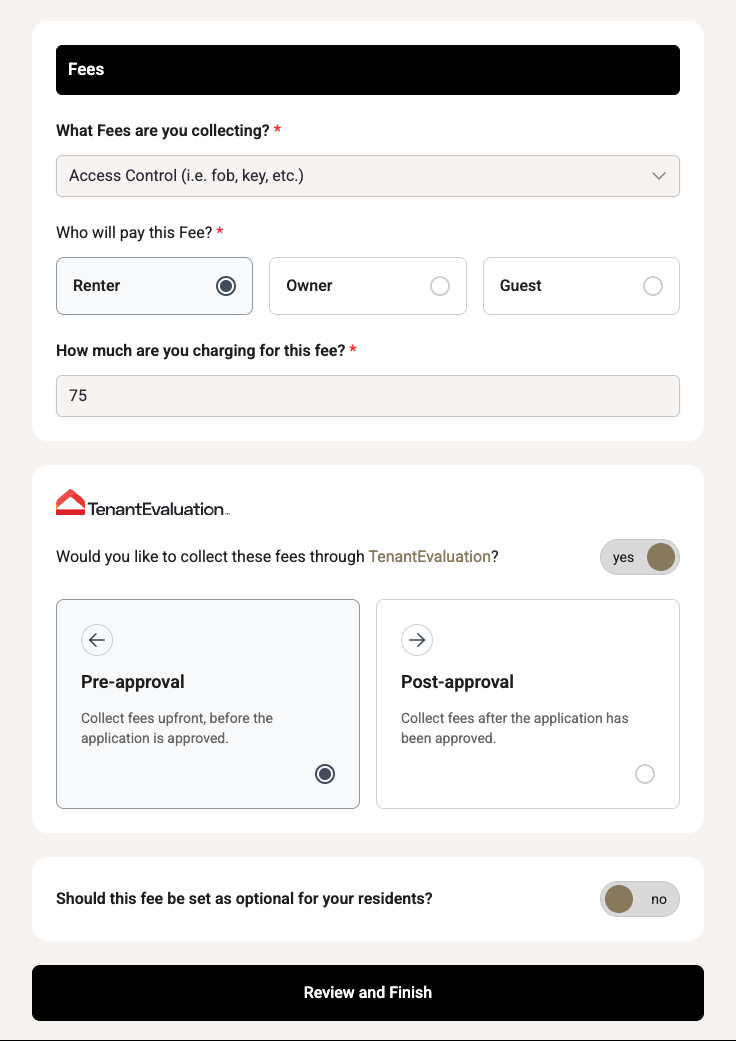
Select who will pay the fee
Choose the responsible party: Owner, Renter, or Guest.
Choose the fee type
Select the appropriate fee from the available list.
Set the fee amount
Enter the amount to be charged.
Choose when the fee will be collected (Tenant Evaluation users only)
If your property uses Tenant Evaluation with QuickApprove, you can define when the contract is collected:
Pre-Approval: An invoice is automatically sent to the applicant as soon as the application is closed and ready for review.
Post-Approval: All remaining contracts are sent once the application is approved through QuickApprove. The applicant will receive a new invoice with all applicable charges.
Define the contract type
Choose whether the fee is one-time or recurring.
Set the collection frequency (recurring fees only)
If the fee is recurring, select how often the payment will be collected.
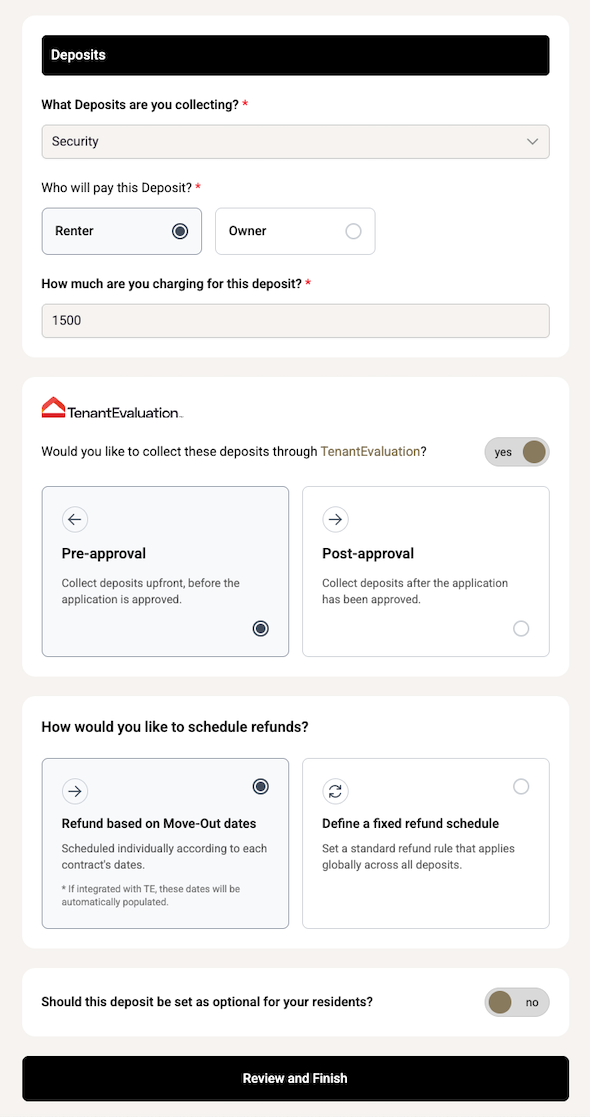
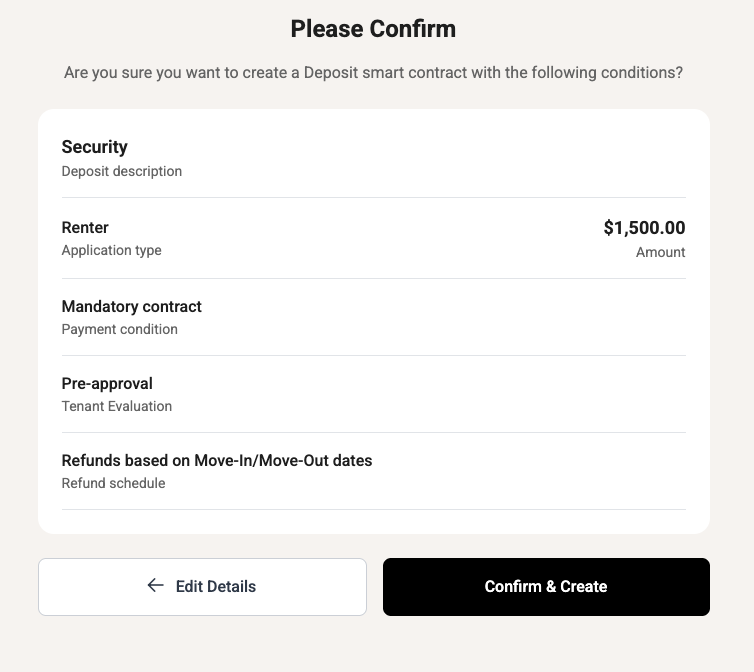
Deposit Sample
This is a typical deposit contract.
Configure Deposit Refund Settings
For deposit-based contracts, you can define how and when refunds are processed using one of the following options:
Refund Based on Move-Out Date
This option requires a move-out date.
If your property uses Tenant Evaluation, the move-out date will be automatically pulled from the contract, and the system will automatically calculate and schedule the refund date.
If you send a payment request through Zinc, you will need to manually specify the refund date when submitting the request to the resident.
Fixed Refund Schedule
This option applies a standard refund timeframe every time the contract is used.
For example, setting a 12-month refund period will automatically set the refund date starting on the original payment date.
6. Review and Create the Contract
After you’ve set all the terms of your new smart contract, a summary will appear for you to review before you click Confirm & Create.
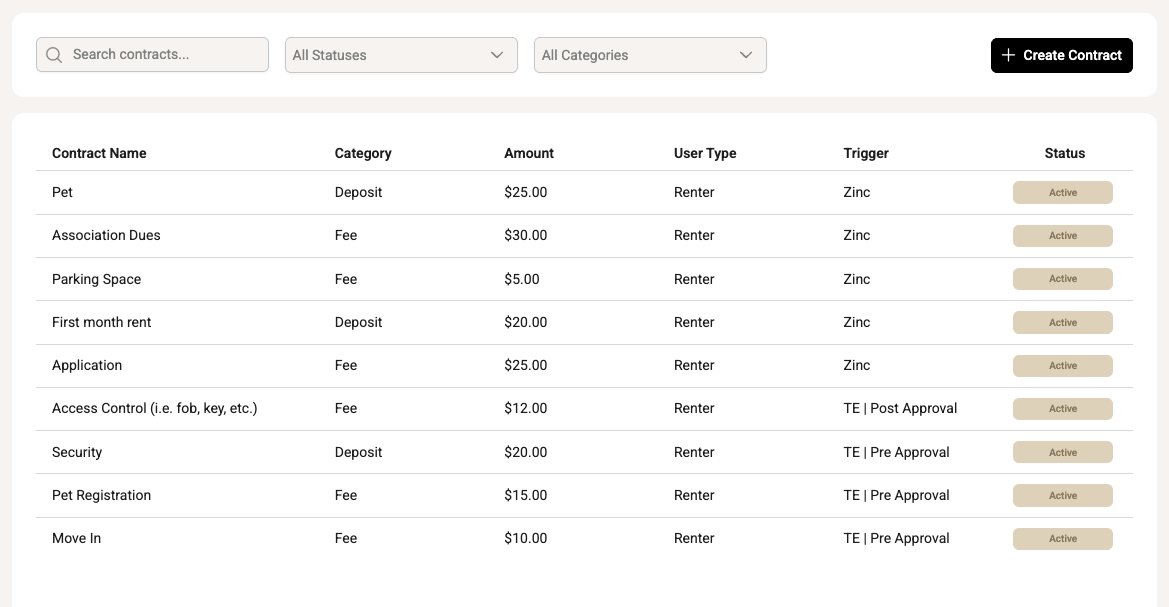
After creating your contract, you can access it by clicking on the Smart contracts button. From here, you can manage all your new and existing contracts.
Need help?
Chat: Inside the Zinc dashboard, in the bottom-right corner (Need Help?)
Phone: 954.271.3294
Main is the author of this solution article.
Did you find it helpful?
Yes
No
Send feedback Sorry we couldn't be helpful. Help us improve this article with your feedback.
